First-day checklist: get your store ready to sell
Logo, theme, first products, delivery charges, contact details and a test order — finish these before you share your store link.
On this page
After you open your store, the dashboard shows a checklist called Start Setting Up Your Store. Finish the steps below and your store is ready for customers. It takes 30–60 minutes in total.
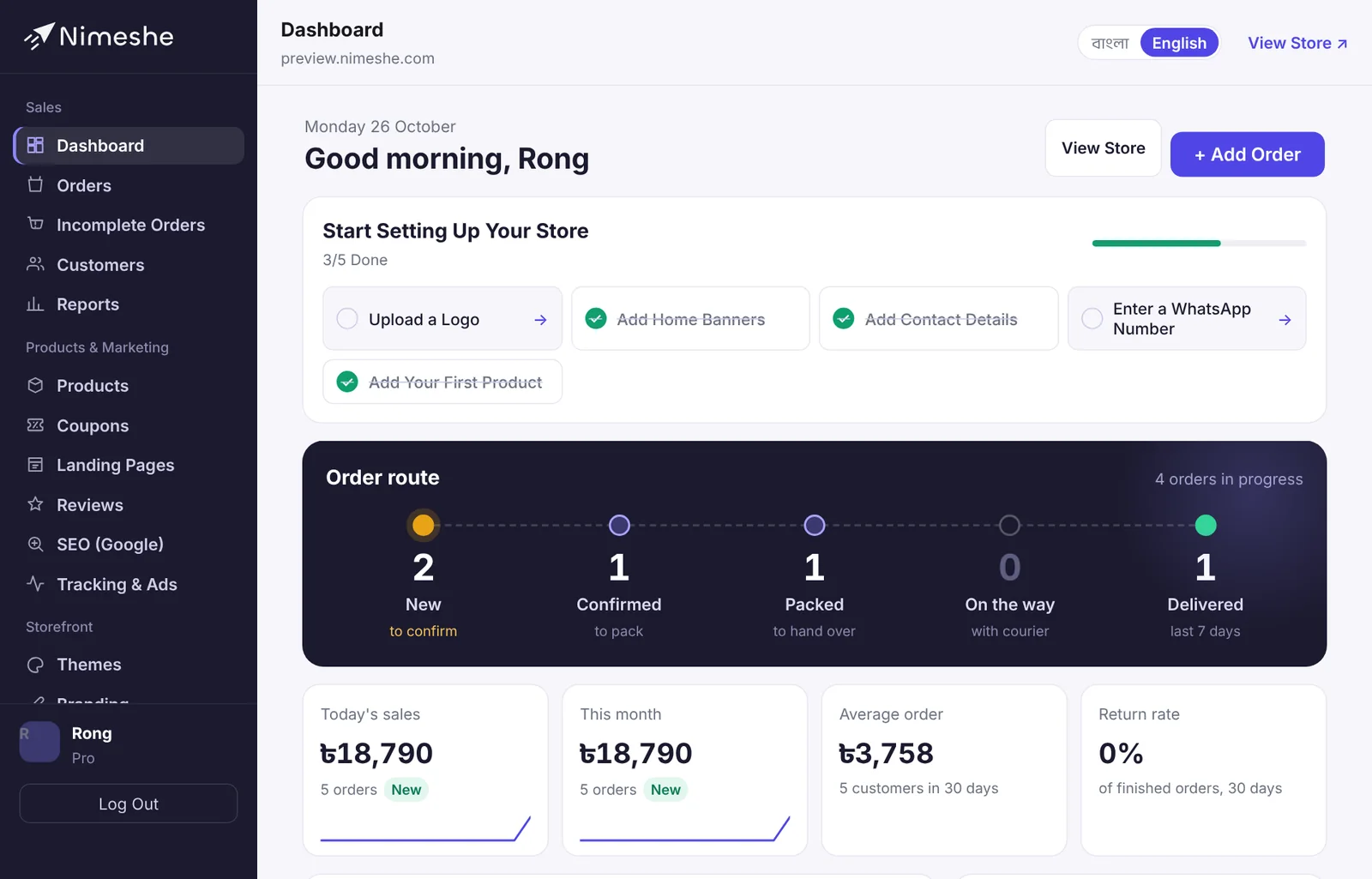
1. Logo and store name
On the Branding page, use Upload Logo. A square or wide PNG with a transparent background looks best. Set your store name and a short tagline here too.
2. Theme and color
The Themes page has live previews of all 14 designs. Pick one that suits your products, then set your brand color and light/dark look on the Branding page. More: Choosing and changing your theme.
3. Add your first products
On the Products page, add at least 4–8 products so the home page looks full. Use good photos, clear names, prices and categories. How: Adding a product.
4. Home banners
On the Home Banners page, add 1–3 banners for offers or new collections. The page tells you the right image size for your theme. More: Home banners.
5. Delivery charges
On the Delivery & Courier page, set the charge for inside and outside Dhaka. Optionally give free delivery above an order amount. More: Delivery charges and cash on delivery.
6. Contact details and WhatsApp
On the Language & Contact page, add your phone, WhatsApp, email, address and Facebook page link. They show in the store footer and contact page, and a WhatsApp number also adds a live-chat button to your store. Choose the store language (Bangla or English) here as well.
7. Payments
Cash on delivery is on from the start. On Basic and higher plans you can connect your own bKash on the Payment Gateways page. See: Payment methods by plan.
8. Place a test order
Open your store, add a product to the cart and order with your own name and number. Check that:
- the delivery charge at checkout is right;
- the new-order SMS and email reach you;
- the order shows on the Orders page.
If everything works, set the order to Canceled. If you track stock, canceling puts the pieces back.
9. Share your link
Put your store link in the Website field of your Facebook page, in posts and in ads. If you run Facebook ads, set up the Pixel and Conversions API first so you can see which ads bring sales.