Choosing your theme, color and light/dark look
Preview all 14 themes and switch in one click. Products, orders and banners stay as they are. Set your brand color and light/dark look too.
On this page
The theme is your store's look — the header, home page layout, product cards, fonts and colors. Nimeshe has 14 themes, each designed for a kind of business. Switch as often as you like; your products, orders and settings stay the same.
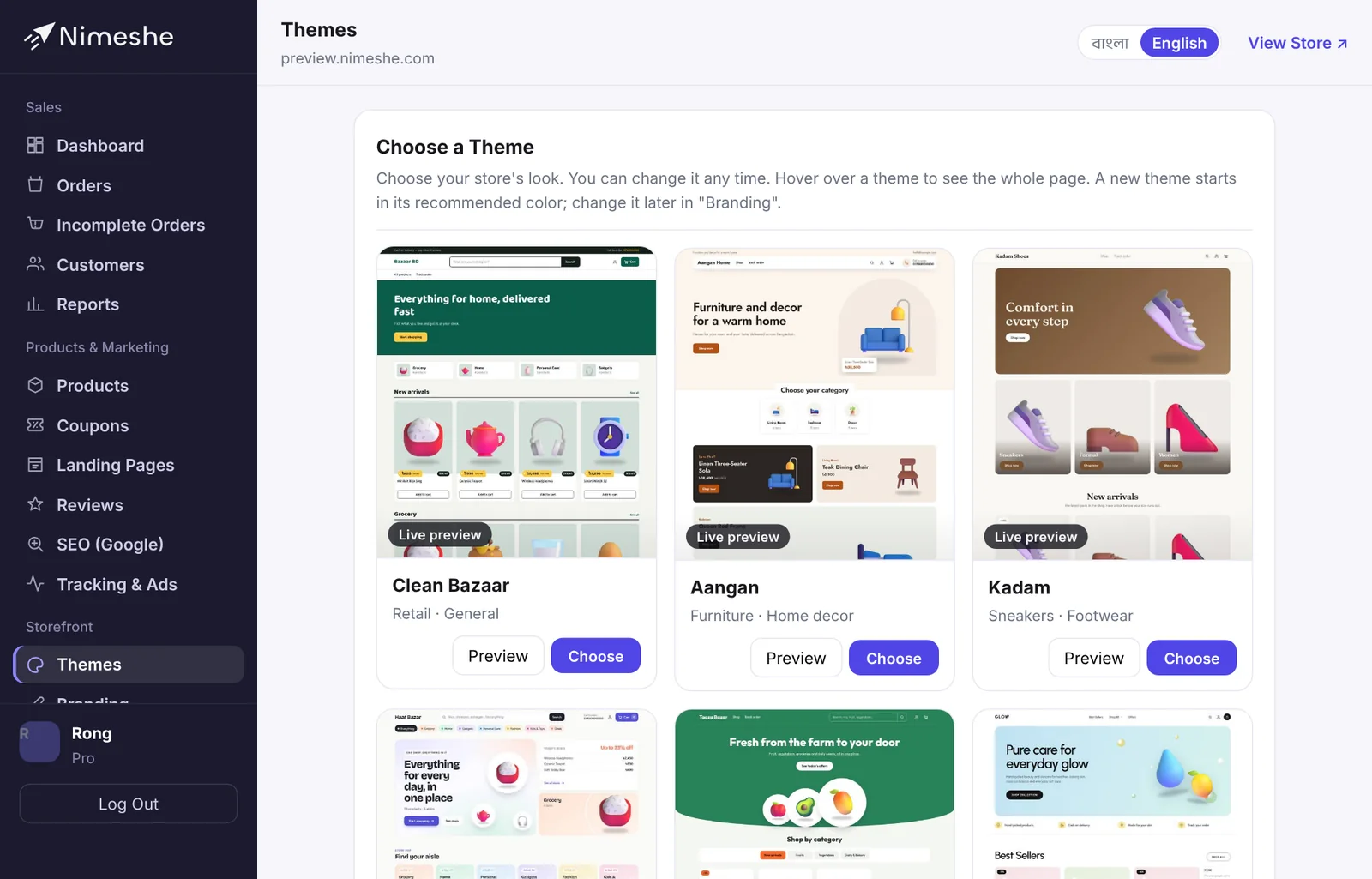
How to change your theme
- Open Themes from the menu.
- Each card shows a real store in that theme. Hover over it (tap on a phone) to scroll the whole home page.
- Click Preview to see it larger.
- If you like it, click Use this theme (or Choose on the card). It goes live on your store at once.
- Open your store and check that everything looks right.
Which theme suits which business
| Theme | Best for |
|---|---|
| Clean Bazaar | Retail, general shops |
| Aangan | Furniture, home decor |
| Kadam | Shoes, sneakers |
| Haat | General store, mixed products |
| Taaza | Grocery, fresh food |
| Glow | Beauty, skincare |
| Volt | Electronics, gadgets (dark) |
| Chhap | Printed tees, streetwear |
| Zen | Perfume, luxury (black & white) |
| Utsob | Sarees, three-piece, ethnic wear |
| Nitto | Lifestyle, fashion |
| Moja | Food, snacks, own brand |
| Shishu | Baby shop, kids |
| Rong | Colorful lifestyle products |
These are only suggestions — any theme works for any business.
What changes when you switch
- Stays the same: products, categories, orders, customers, banners, menus, pages, logo and every setting.
- Resets: the brand color goes back to the new theme's recommended color, and the light/dark look goes back to the theme's own. You can set your own color again afterwards.
- Banner size: each theme shows banners in a slightly different shape. After switching, check the new size on the Home Banners page. See: Home banners.
Brand color and light/dark look
On the Branding page:
- Store Look: light or dark. The one marked Recommended is what the theme was designed for.
- Brand Color: the first swatch is the theme's recommended color. Use Pick your own color for your brand color. If a color is too light to read, it's darkened slightly for you.
- Logo & Details: logo, store name and tagline.
FAQ
Does the store go offline while switching?
No. The new theme is live the moment you click; the store never closes.
Can I make a fully custom design?
You can't change a theme's layout, but your logo, color, light/dark look, banners, menu and pages make the store your own.
Was this article helpful?