How to add a product
Add a product with photos, name, price, old price (discount), stock, category and description. Stock goes down by itself and shows "Out of stock" at zero.
On this page
To add products, open Products from the menu on the left of the admin panel. The New Product form is at the top and your product list is below it.
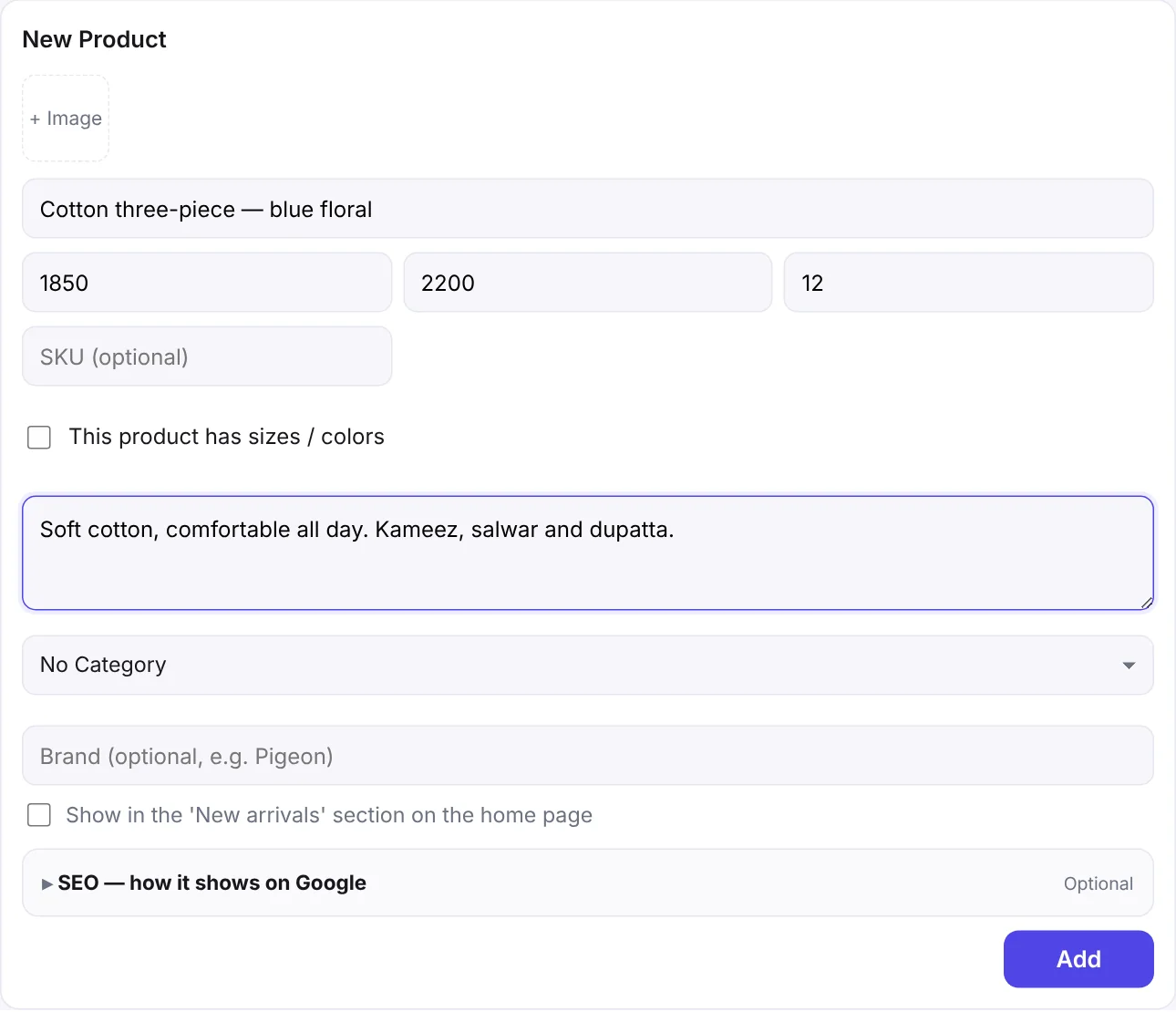
Step by step
- Click + Image to add a photo. Click again to add more. The first photo is the main one shown in your store.
- Write the Product name the way customers search for it, e.g. "Cotton three-piece — blue floral".
- Enter the Price ৳ — customers pay this.
- For a discount, enter an Old price ৳. When the old price is higher, the store shows it crossed out with a "% off" badge.
- To track stock, type how many you have in Stock. Leave it empty to not track stock (always "in stock").
- Add a SKU if you use your own item codes (optional).
- Write a Description: fabric, size, weight, how to use, warranty — what customers want to know.
- Choose a Category. To make a new one, pick ⚙ Manage Categories… at the end of the drop-down.
- Optionally add a Brand (e.g. Pigeon). Brands you used before are suggested.
- Tick Show in the 'New arrivals' section on the home page to feature it.
- Click Add. The product appears in your store right away.
Tips for good photos
- Use JPG, PNG or WEBP images under 5 MB each.
- Square (1:1) or portrait (4:5) photos look best in most themes. At least 1000 pixels wide is ideal.
- A plain white or light background makes the store look clean.
- Show the front, back, close-ups and the product in use — it cuts returns.
How stock works
- With a stock number, every order lowers it automatically.
- At 0 the store shows Out of Stock and customers can't buy it.
- Canceled or Returned orders put the pieces back in stock.
- To get an email when stock runs low, set a low-stock level (e.g. 3) on the Notifications page.
Editing or deleting a product
Click Edit next to a product in the list; it opens in the form above. Make your changes and click Update. Delete removes the product from the store; earlier orders keep their records.
Product link and SEO
Open SEO — how it shows on Google under the form to see a Google preview. You can write your own SEO title and description; leave them empty and they're made from the name, price and description.
The product link (e.g. /product/blue-floral-three-piece) is made from the English name. You can change it when editing, but old links you shared on Facebook will stop working.
How many products can I add?
| Plan | Products |
|---|---|
| Free | 15 |
| Basic | 200 |
| Standard | 1,000 |
| Pro | Unlimited |
When you reach the limit, the form shows an Upgrade link.
FAQ
How do I hide a product for a while?
If you track stock, set it to 0 — the store shows "Out of stock" and nobody can buy it. To remove it completely, delete it.
If I change a price, do old orders change?
No. Every order keeps the price from the moment it was placed. A new price only applies to new orders.
What link does a product with a Bangla name get?
If the name is only in Bangla, the link gets a short code. You can edit it later and set an English link like cotton-three-piece.