Setting up sizes and colors (variants)
Create size, color or fabric combinations for one product — each with its own price, stock and SKU. Customers must pick one before adding to the cart.
On this page
If one shirt comes in S, M and L and in red and blue, don't create separate products — add variants to one product. Customers choose the size and color on the product page, and every combination has its own stock.
Step by step
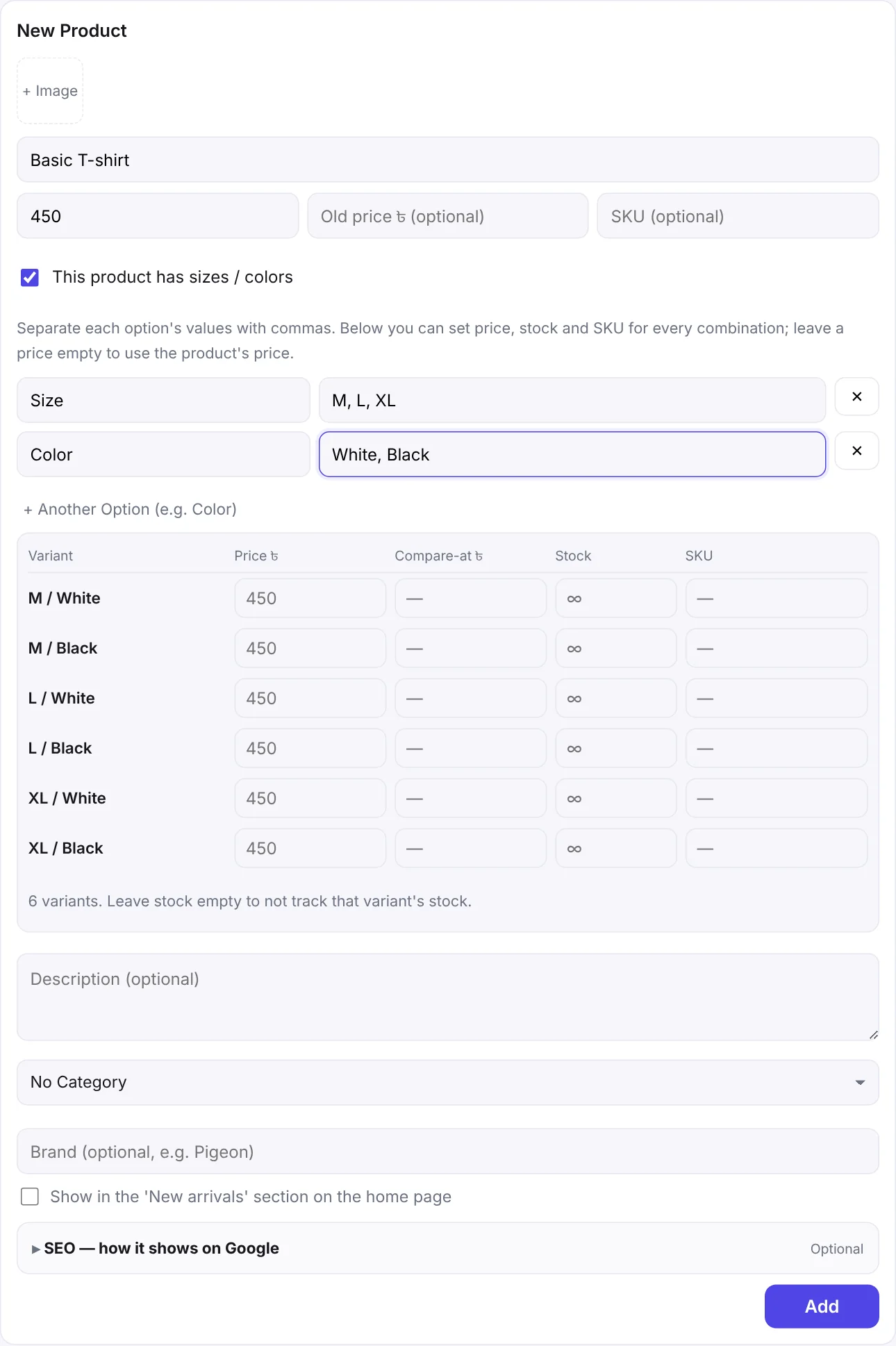
- On the Products page, create a product or click Edit on an existing one.
- Tick This product has sizes / colors.
- In the first box, type the option name, e.g.
Size. - In the next box, type the values separated by commas, e.g.
S, M, L, XL. - Need another option? Click + Another Option (e.g. Color) and fill it in, e.g.
Color→Red, Blue, Black. - A list of every combination appears below (
S / Red,S / Blue…). Set the Price, Compare-at price, Stock and SKU for each. - Save with Add or Update.
Limits
- Up to 3 options per product (e.g. size, color, fabric).
- Up to 30 values per option.
- Up to 100 combinations in total.
Stock and orders
- Each combination has its own stock. Selling
M / Blueonly lowers that one. - When a combination is at 0, its buy buttons are switched off; the others can still be bought.
- Orders and printed invoices show the choice next to the name, e.g. "T-shirt (M / Blue)".
- Customers can't add to cart without choosing, so wrong-size orders drop.
FAQ
Can I add a new size later?
Yes. Edit the product, add the new size to the option's values (comma separated), then set stock for the new combinations.
What happens if I turn variants off?
Untick the box and it becomes a simple product again, with one price and one stock. Sizes and colors on earlier orders stay in the records.
Was this article helpful?