Setting up Facebook Pixel and the Conversions API
Measure sales from your ads with your Pixel ID and Conversions API token. Events go from both the browser and the server, and Facebook counts each once.
On this page
When you advertise on Facebook, you need to know which ads actually sell. Nimeshe runs both the Facebook Pixel and the Conversions API (CAPI) — purchases are reported from the browser and the server, so they aren't lost to ad blockers or iPhones, and Facebook counts each sale only once.
Events that are sent
| Event | When |
|---|---|
| PageView | Any page opens |
| ViewContent | A product page opens |
| AddToCart | Something is added to the cart |
| InitiateCheckout | Checkout starts |
| Purchase | An order is placed (with value and products) |
Purchase is also sent from the server, which makes your ad reporting more accurate.
1. Get your Pixel ID
- Go to Meta Events Manager.
- Pick your Pixel (dataset), or create one.
- Copy the 15–16 digit Pixel ID under its name.
2. Get a Conversions API token
- In Events Manager, open the same Pixel and go to Settings.
- Under Conversions API, click Generate access token.
- Copy the long token. It's only shown in full once, so keep it safe.
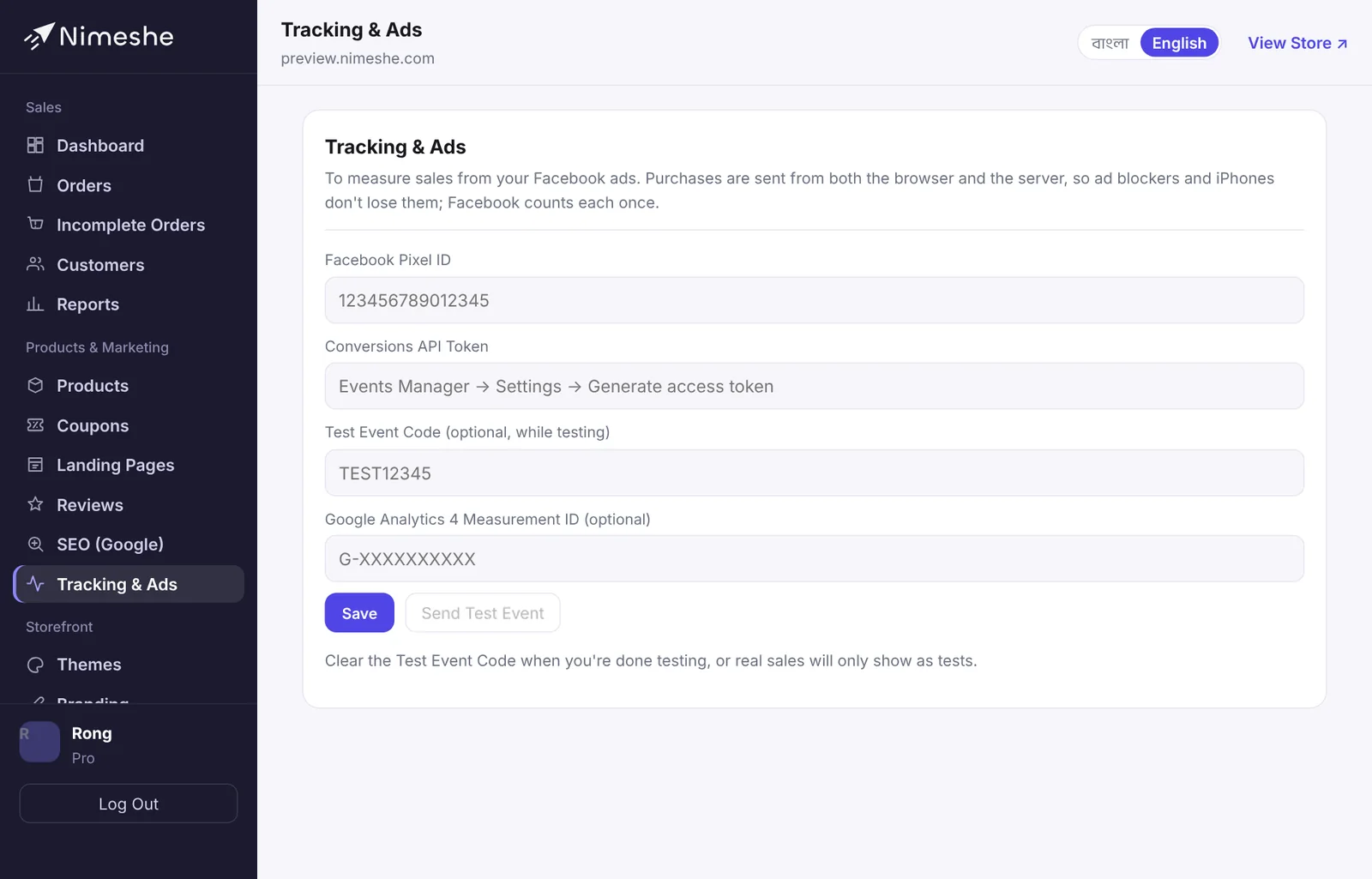
3. Add them in Nimeshe
- In your admin, open Tracking & Ads.
- Enter the Pixel ID in Facebook Pixel ID.
- Paste the token in Conversions API Token.
- Click Save. It's live on your store at once.
4. Test it
- In Events Manager, open Test events and note the test event code (e.g.
TEST12345). - Enter it in Test Event Code in Nimeshe and save.
- Click Send Test Event. "Facebook received the event ✓" means the connection works.
- Open your store, view a product and add it to the cart — check the events appear under Test events.
Google Analytics 4 (optional)
To see where visitors come from, enter your Google Analytics Measurement ID (starts with G-) in Google Analytics 4 Measurement ID on the same page.
FAQ
The Pixel works but Purchase doesn't show.
Check the Test Event Code is empty and the token belongs to the same Pixel. Then place a real test order — it can take a few minutes to appear in Events Manager.
How do I change the token?
Paste the new token and save; it replaces the old one. Remove Token stops server events, leaving only the browser Pixel.