Viewing, confirming and updating orders
From new order to delivered — changing status, printing invoices and labels, adding phone orders, and which SMS the customer gets at each step.
On this page
When someone orders from your store, it appears on the Orders page right away and you get an SMS and email. From this page you confirm, print, send with a courier and track every order until it's delivered.
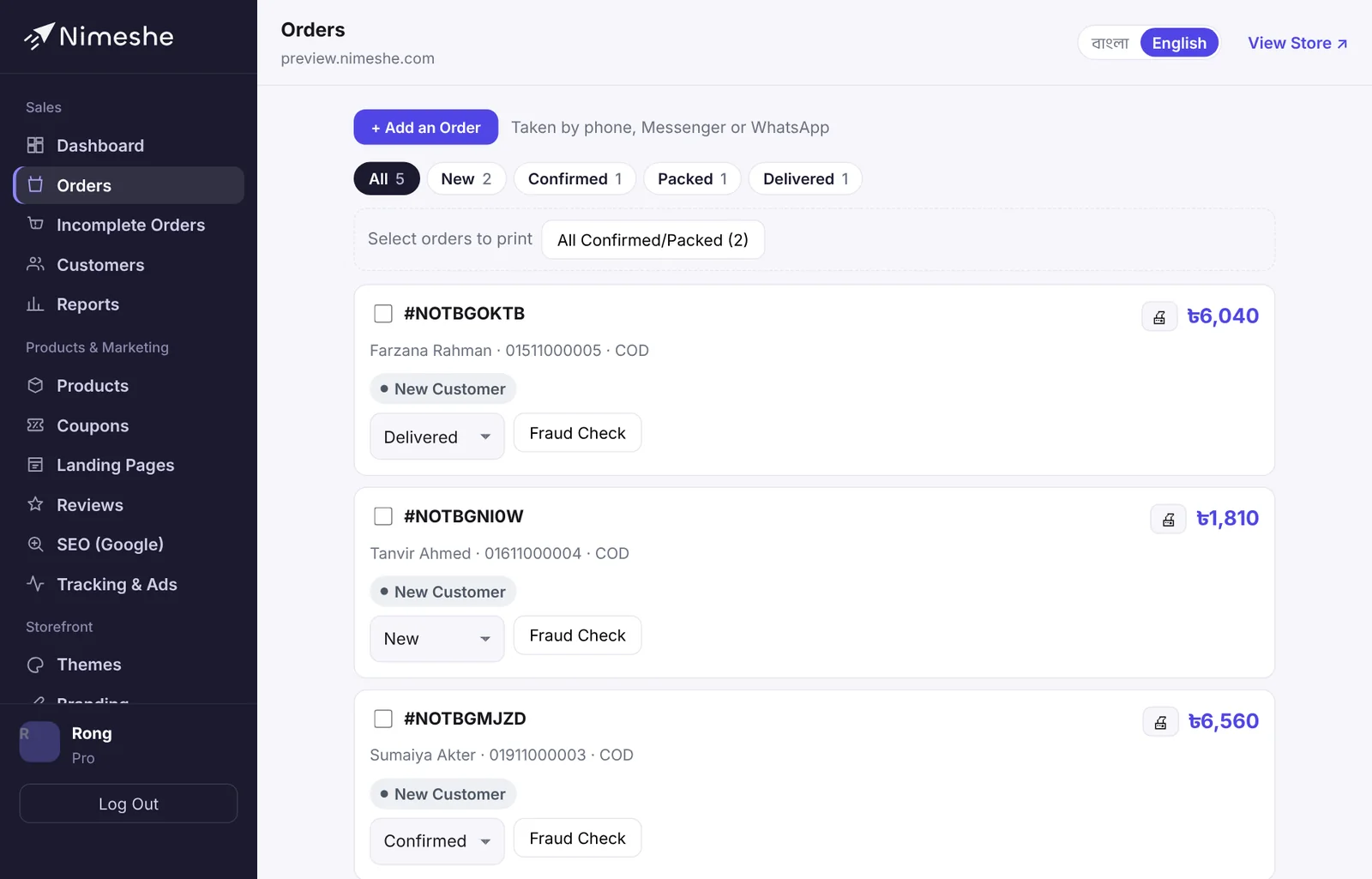
What each order shows
- Order number, date and total.
- Customer name, phone and payment method (COD, bKash, card…). Paid online orders say paid, and bKash ones show the TrxID.
- Badges for a coupon, a landing page or an advance payment.
- A risk badge (Safe, Caution, Risky) based on the phone number's delivery history.
Order statuses
| Status | Meaning |
|---|---|
| New | The customer placed it; not handled yet |
| Confirmed | You called or checked and confirmed it |
| Packed | The parcel is packed |
| Shipped | Handed to the courier |
| Delivered | The customer received it |
| Canceled | Canceled before shipping |
| Returned | The customer refused or sent it back |
Change the status with the drop-down under each order. The tabs at the top (All, New, Confirmed…) filter the list and show a count for each.
A simple routine
- For a New order, look at Fraud Check first. If it's risky, call the customer to confirm.
- Once confirmed, set it to Confirmed.
- Pack it, set Packed, and print the invoice and label.
- With a courier connected, click Send via Steadfast (or Pathao/Carrybee) — the status becomes Shipped automatically. Without one, set Shipped yourself.
- With a courier connected, delivered and returned updates come in by themselves. Otherwise set Delivered or Returned yourself.
Printing invoices and labels
- One invoice: the 🖨 button next to the order.
- Many at once: tick the boxes next to orders, or use All Confirmed/Packed to select them in one go. Then choose Invoices, Labels 4×6 (thermal label printers) or Labels A4 at the top.
- Labels show the customer's name, phone, address, COD amount and a barcode.
Orders from phone or Messenger
Got an order by phone or in your inbox? Click Add an Order. Choose the products and quantities, enter the customer and address, and set an agreed price if you like. These orders start as Confirmed, take stock, and the customer gets a confirmation SMS.
Which SMS the customer gets
- After ordering: we got your order.
- When Shipped: your parcel is on the way (with the tracking code when booked with a courier).
- On Pro, when Delivered: a request to leave a review (if turned on).
Turn each message on or off on the Notifications page. Every SMS uses your monthly SMS allowance.
FAQ
Can I delete an order?
No — orders are kept so your accounts and reports stay correct. Set fake or mistaken orders to Canceled.
How many orders can I take a month?
30 on Free, 100 on Basic, unlimited on Standard and Pro. When you reach the limit, new orders stop for that month, so upgrade in time.