How to take payments with your own bKash merchant account
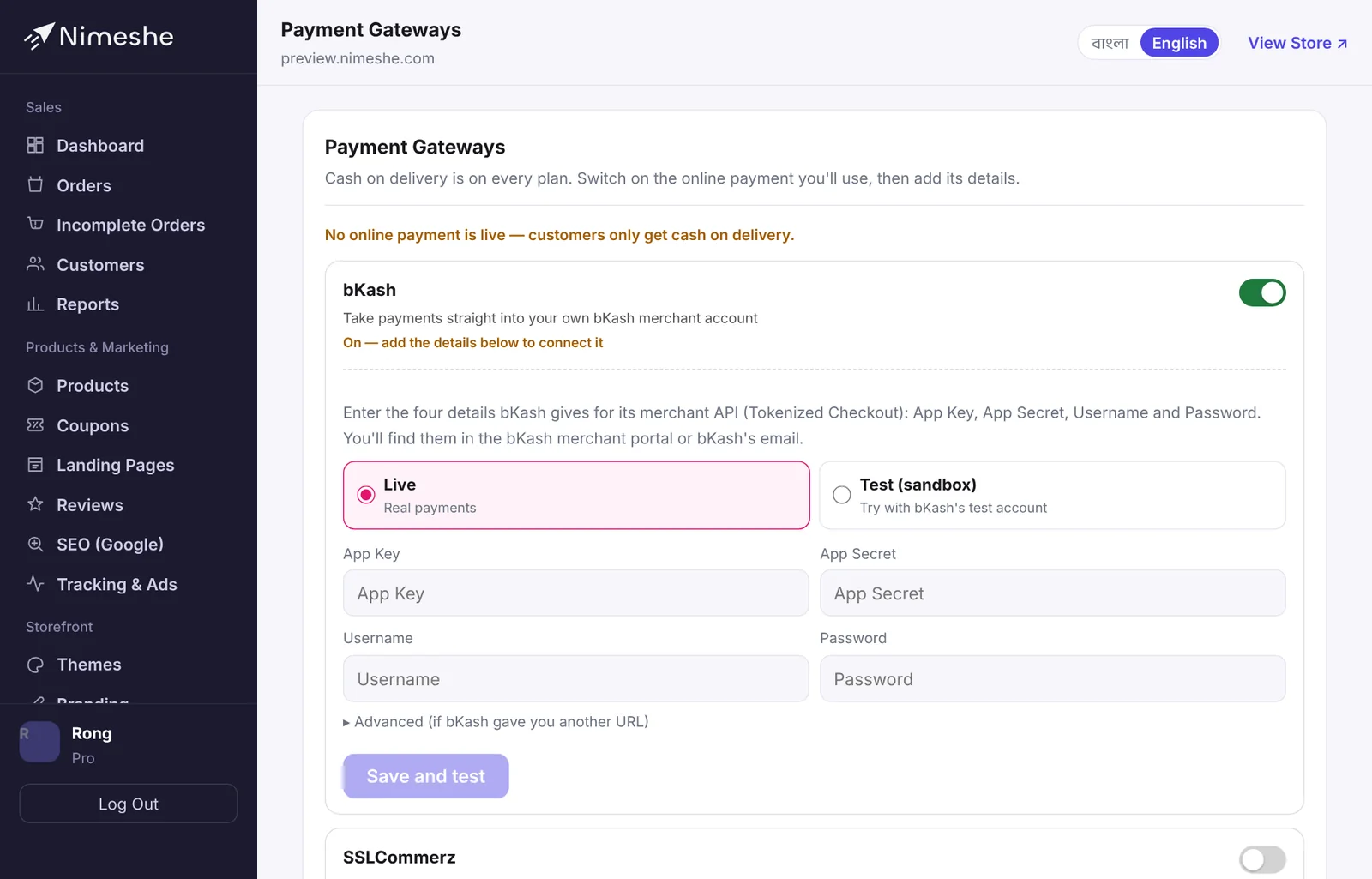
Turn on bKash payments with your App Key, App Secret, Username and Password. Customer money goes straight to your merchant account.
With bKash connected, customers pick bKash at checkout and pay from their own bKash account. The money goes straight to your bKash merchant account and the order is marked paid automatically.
What you need first
- A bKash merchant account (opened with bKash using your trade license and other documents).
- bKash's payment gateway (Tokenized Checkout) API. Apply to bKash for online payments/PGW. Once approved, bKash gives you four details: App Key, App Secret, Username and Password.
You'll find them in the bKash merchant portal or in the email bKash sends you.
Step by step
- In your admin, open Payment Gateways and turn On the switch next to bKash — the detail fields open below.
- Choose the Mode: Live for real payments, or Test (sandbox) if bKash asks you to test first.
- Enter the App Key, App Secret, Username and Password.
- Click Save and test. Nimeshe checks everything with bKash.
- On success you'll see "bKash is connected", and bKash appears at checkout.
- Place a small order in your store and pay with bKash. Check the order shows paid and a TrxID.
Moving from test to live
bKash usually asks for a few sandbox test payments first. Afterwards it gives you a new App Key and Secret for live. Switch the Mode to Live, enter the new details and click Save and test again.
Security
- Your bKash details are stored encrypted and aren't shown again after saving ("Saved — enter a new one to change").
- Your store's payments always use your own bKash — Nimeshe's account is never involved.
- Disconnect deletes all the details.
FAQ
"Test connection" fails.
Check the mode — sandbox details don't work in Live mode, and live details don't work in Test mode. Copy all four details again with no spaces before or after. If it still fails, ask bKash whether your API access is active.
The customer paid, but the order isn't marked paid.
Refresh after a few minutes. If it still isn't, look up the payment in the bKash merchant app with the TrxID and contact our support with the order number.
How do I refund?
Refunds are made from the bKash merchant portal. Then set the order to Canceled or Returned in Nimeshe.